




How to Test 2.5GbE and 10GbE Mini PC Speed with iperf3
How to Test 2.5GbE and 10GbE Mini PC Speed with iperf3
A 10GbE port does not guarantee 10Gbps of application throughput. Even when a network interface negotiates at its advertised speed, actual performance can be affected by the processor, network controller, operating system, and connected equipment.
For Qotom mini PCs used in home labs, NAS environments, or network appliances, iperf3 provides a practical way to measure local network throughput without involving internet speed or storage performance.
Here's how to run a meaningful test.
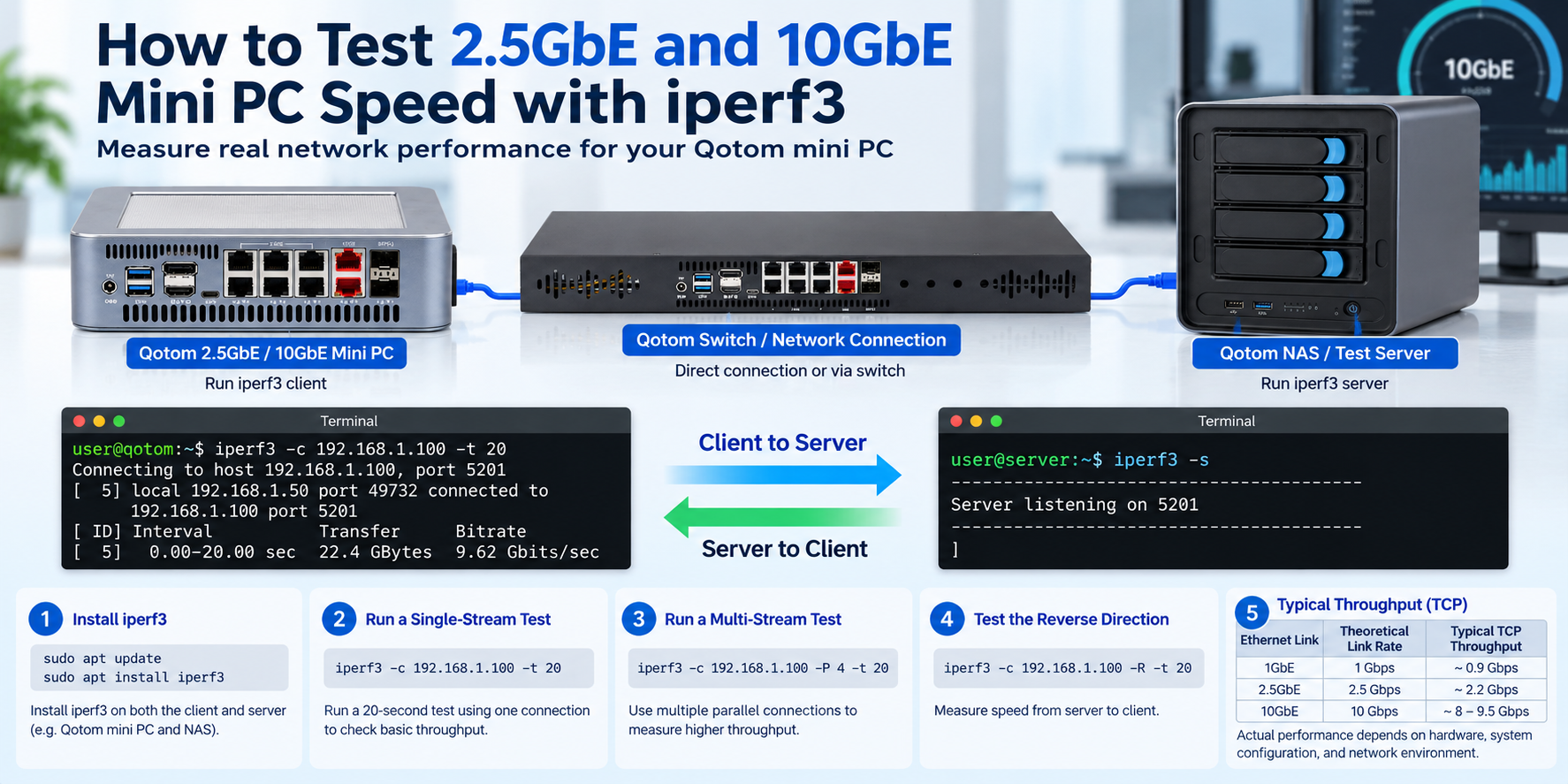
1. Prepare Your Network for Testing
You need two computers running iperf3: one acts as the client, and the other as the server.
Connect them directly or through a compatible network switch.
For a valid 10GbE test, both network interfaces and every intervening link must support 10GbE. The same principle applies to 2.5GbE.
On Debian or Ubuntu, install iperf3:
</> Bash
sudo apt update
sudo apt install iperf3
On the receiving computer, start the server:
</> Bash
iperf3 -s
By default, iperf3 listens on TCP port 5201. Make sure the local firewall permits the test connection.
2. Run Single-Stream and Multi-Stream Tests
On your Qotom mini PC, run:
</> Bash
iperf3 -c 192.168.1.100 -t 20
Replace the example IP address with your test server's address.
This performs a 20-second TCP throughput test using one connection.
Next, test multiple parallel connections:
</> Bash
iperf3 -c 192.168.1.100 -P 4 -t 20
The -P 4 option creates four parallel TCP streams.
Multi-stream testing can reveal whether a single connection is limited by CPU processing or TCP behavior. However, higher aggregate throughput does not mean individual applications will achieve the same speed.
To test traffic in the opposite direction, use:
</> Bash
iperf3 -c 192.168.1.100 -R -t 20
The -R option makes the server send data to the client.
Testing both directions is useful because transmit and receive performance may differ.
3. Understand Your iperf3 Results
iperf3 reports throughput in bits per second, typically displayed as Mbits/sec or Gbits/sec.
For example:
| Ethernet Link | Theoretical Link Rate |
|---|---|
| 1GbE | 1Gbps |
| 2.5GbE | 2.5Gbps |
| 10GbE | 10Gbps |
Actual TCP throughput will be lower because Ethernet, IP, and TCP introduce overhead.
When interpreting results, check the final receiver throughput and look for significant differences between single-stream and multi-stream tests.
Also remember that iperf3 measures network performance, not SSD read/write speed or real-world NAS file transfer performance.
4. What If Your Mini PC Performs Below Expectations?
Start by checking the negotiated Ethernet speed.
On Linux:
</> Bash
sudo ethtool enp1s0
Replace enp1s0 with your actual network interface.
If the connection negotiates at the expected speed but iperf3 results remain low, investigate CPU utilization, network drivers, PCIe bandwidth, and the performance of the second test computer.
On multi-LAN mini PCs, also confirm that the test traffic uses the intended network interface rather than a slower management connection.
For additional troubleshooting, see our 2.5GbE Mini PC Stuck at 1Gbps? How to Find the Bottleneck guide.
Final Thoughts
iperf3 is a useful tool for checking whether a 2.5GbE or 10GbE mini PC is delivering the network throughput your infrastructure can support.
For reliable results, test both directions, compare single and parallel streams, and keep the test environment consistent.
The goal is not simply to reach the highest number. It is to understand where your network's actual performance limits are.