




How to Turn a Mini PC into a Family Photo Backup Server
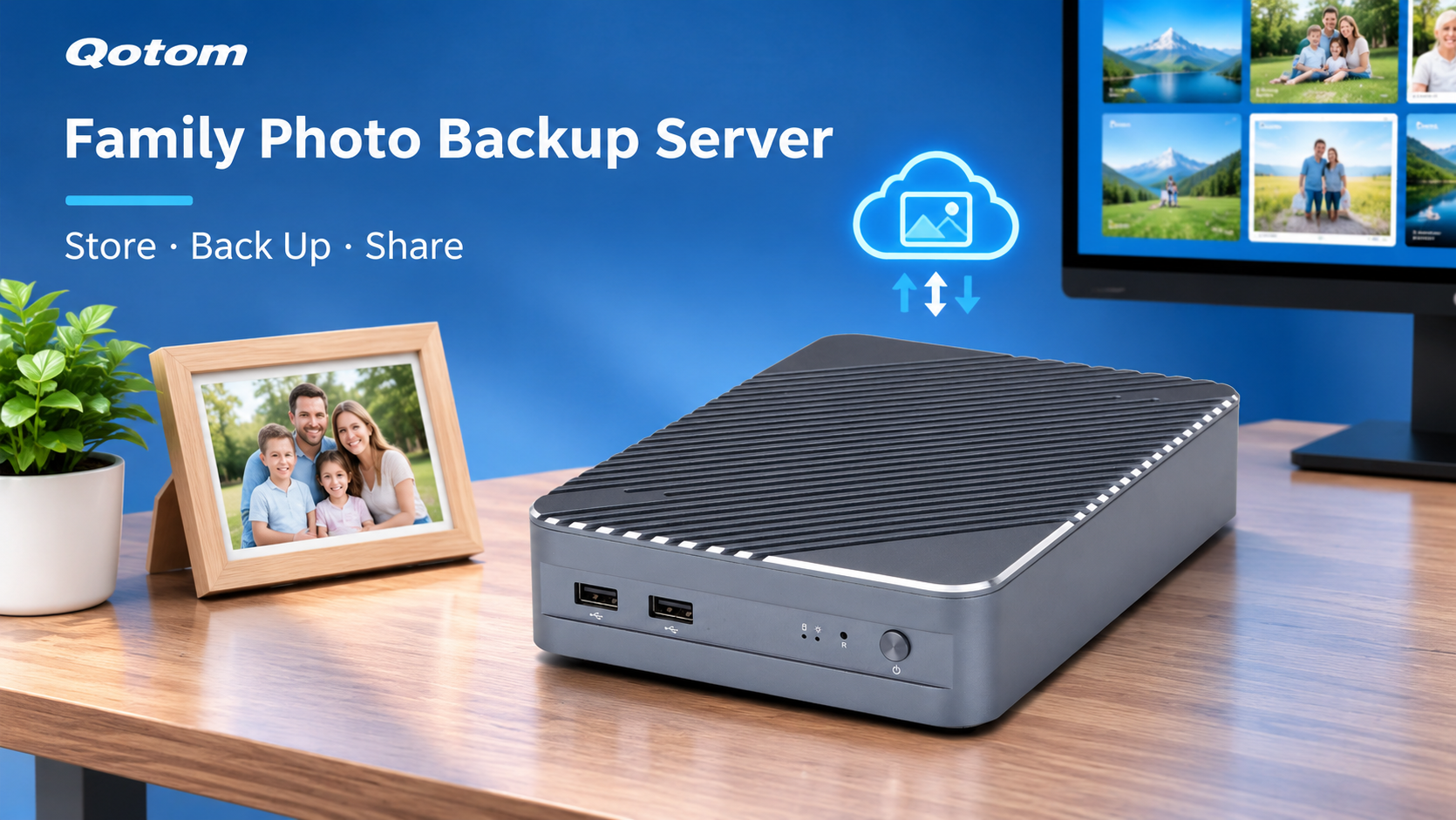
Smartphones make it easy to capture thousands of family photos, but keeping those memories organized and protected is another challenge.
Photos often end up scattered across phones, laptops, external drives, and cloud accounts. When a device fails or storage runs out, recovering everything can become difficult.
A mini PC can provide a practical solution: a dedicated home photo backup server that keeps your family's files in one place.
1. Why Use a Mini PC for Photo Backup?
A mini PC can operate as a small home server, allowing family members to transfer photos and videos to shared storage over a local network.
Compared with keeping everything on one laptop, a dedicated system offers several advantages:
Centralized storage: Keep family photos in one organized location.
Automatic backups: Use compatible software to schedule regular transfers.
Multi-device access: Share storage between phones, laptops, and desktop computers.
Flexible capacity: Select storage based on your photo and video collection.
Compact installation: Place the system on a desk or shelf without a full-size computer tower.
Qotom offers compact computing platforms suitable for different home-server applications. The appropriate configuration depends on storage requirements and software compatibility.
2. What Hardware Do You Need?
Building a home photo backup server does not necessarily require an expensive processor.
For basic file sharing and scheduled backups, storage capacity and reliability are often more important than raw CPU performance.
| Component | Recommended Consideration |
|---|---|
| Processor | Modern low-power multi-core CPU |
| Memory | 8GB for basic file-sharing workloads; more for additional services |
| Storage | SSD for the operating system, with separate capacity for photos |
| Networking | Gigabit Ethernet or 2.5GbE |
| Operating System | Compatible Windows or Linux installation |
| Backup Drive | Separate external or network storage |
If you frequently transfer large video files, 2.5GbE networking may reduce transfer times when the rest of the network and storage can support the higher speed.
Before purchasing a mini PC, verify its actual drive bays, storage interfaces, and supported capacities.
3. How to Set Up Your Photo Backup Server
Start by installing your preferred operating system and configuring the storage drives.
Next, create a dedicated folder for family photos and enable network file sharing. Windows SMB sharing or a Linux-based file server can provide access from compatible devices.
For automatic smartphone uploads, install photo backup software that supports your mobile operating system.
A simple workflow looks like this:
Phone or Laptop → Home Network → Mini PC Storage → Separate Backup Drive
Organize photos by year, event, or family member to make future searches easier.
If multiple people use the server, create individual accounts and configure appropriate folder permissions.
Avoid exposing file-sharing services directly to the public internet. Remote access should use a properly secured method.
4. Don't Forget the Second Backup
A home server provides convenient centralized storage, but it is not automatically a complete backup strategy.
Hardware failures, accidental deletion, malware, and physical damage can still result in data loss.
Follow the 3-2-1 backup principle: maintain three copies of important data, use two different storage media or systems, and keep at least one copy off-site.
An external drive or a separate backup destination can provide additional protection. Periodically test file restoration rather than assuming every backup is usable.
For families with growing photo libraries, a Qotom mini PC can serve as the foundation of a compact, customizable home storage system.
The goal is simple: keep your family memories organized, accessible, and protected for years to come.