




2.5GbE Mini PC Stuck at 1Gbps? How to Find the Bottleneck
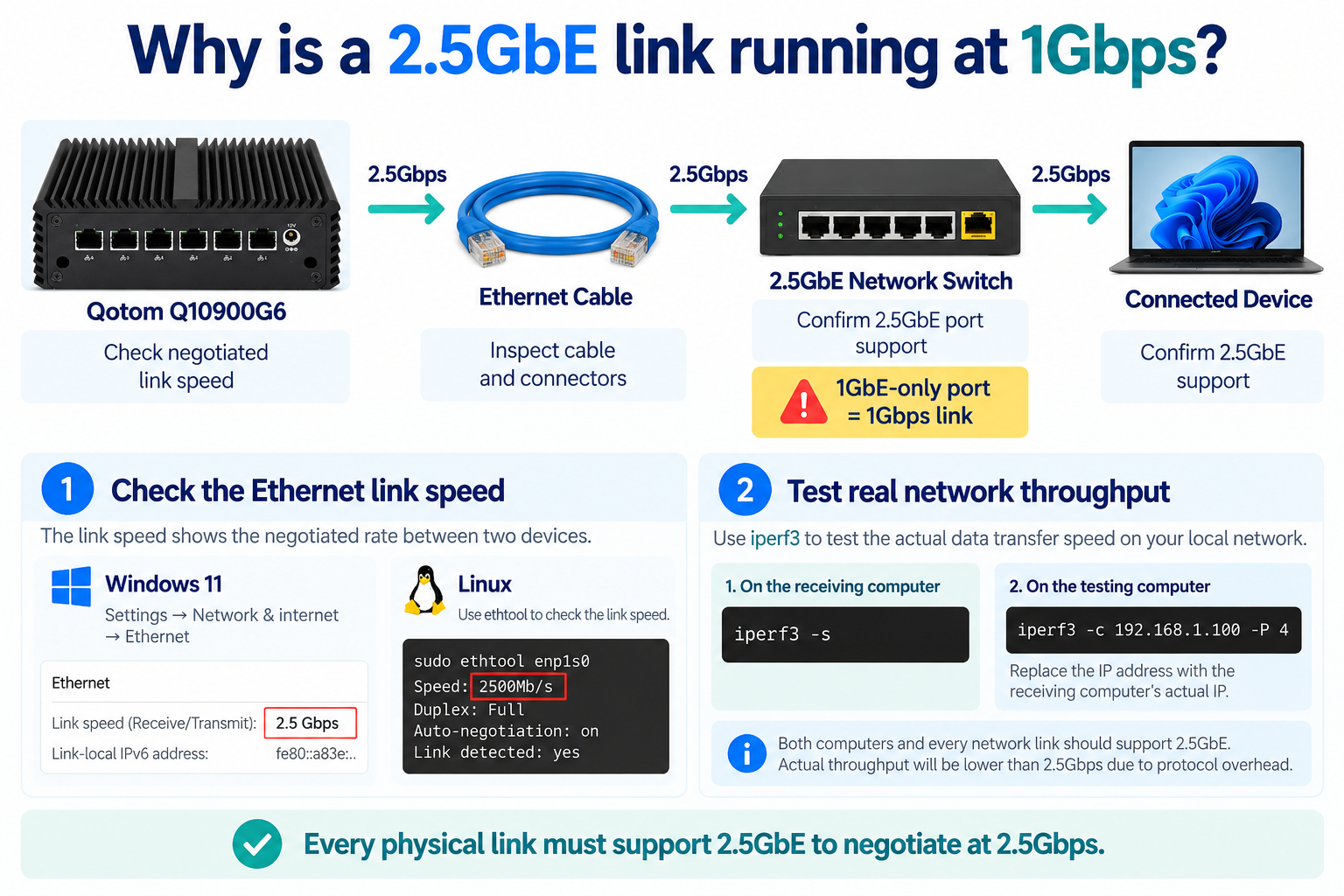
A 2.5GbE mini PC should support Ethernet links up to 2.5Gbps, but some users find their connection running at only 1Gbps.
This can happen with firewall appliances, home lab servers, NAS systems, and industrial network computers. The problem is not always the mini PC itself.
Before changing drivers or replacing hardware, check how the Ethernet connection negotiates its speed.
1. Check the Actual Ethernet Link Speed
The first step is to distinguish link speed from actual data transfer speed.
Link speed is the connection rate negotiated between two Ethernet devices. Throughput is the amount of data transferred during a test.
On Windows 11, open:
Settings → Network & internet → Ethernet
Look for the Link speed (Receive/Transmit) value.
On Linux, use:
sudo ethtool enp1s0
Replace enp1s0 with your actual network interface name.
Check the reported speed:
1000Mb/s: The connection is operating at 1GbE.
2500Mb/s: The connection has negotiated a 2.5GbE link.
Link detected: no: Check the cable and connected device.
If the link is negotiating at 1Gbps, running an internet speed test will not make that connection operate at 2.5Gbps.
2. Check the Cable, Switch, and Connected Device
A 2.5GbE network requires compatible hardware at both ends of the connection.
For example, connecting a Qotom 2.5GbE mini PC to a Gigabit-only switch will normally result in a 1Gbps link.
Check these components:
Ethernet cable: A properly installed Cat5e cable can generally support 2.5GbE over distances up to 100 meters. Damaged cables or poor terminations may cause negotiation problems.
Network switch: Confirm that the connected switch port supports 2.5GbE, not just 1GbE.
Connected device: Both Ethernet interfaces must support 2.5Gbps.
Network adapter settings: Check that auto-negotiation is enabled and the adapter is not restricted to a lower speed.
For most 2.5GBASE-T connections, leaving auto-negotiation enabled is preferable to manually forcing a speed.
3. Test Real Network Throughput
Once the link negotiates at 2.5Gbps, test actual performance.
A useful method is running iperf3 between two computers on the same local network.
On the receiving computer:
iperf3 -s
On the testing computer:
iperf3 -c 192.168.1.100 -P 4
Replace the example IP address with the receiving computer's actual address.
Both computers and every intervening network link should support 2.5GbE.
Actual throughput will be below the theoretical 2.5Gbps link rate because of protocol overhead and system limitations.
Testing locally helps separate LAN performance from internet connection speed, ISP restrictions, and external server limitations.
4. Common Causes of Slow 2.5GbE Performance
| Problem | What to Check |
|---|---|
| Link limited to 1Gbps | Switch port, cable, adapter negotiation |
| Link shows 2.5Gbps but transfers are slow | CPU load, drivers, test configuration |
| Internet speed remains below 2.5Gbps | ISP plan, router, WAN port |
| Speed drops intermittently | Cable quality, connectors, driver stability |
For Qotom multi-LAN mini PCs running pfSense, OPNsense, or Linux, check the negotiated speed of each physical interface separately.
A multi-port firewall may have a 2.5GbE LAN connection while its WAN interface operates at 1Gbps.
If you are planning a network upgrade, our 2.5GbE vs 10GbE Mini PC Guide explains when higher-speed networking is worth considering.
Final Thoughts
A 2.5GbE mini PC operating at 1Gbps does not necessarily indicate a hardware fault.
Start by checking the negotiated link speed, then inspect the cable, switch, connected device, and network adapter settings.
Once the physical connection reaches 2.5Gbps, local throughput testing can help identify remaining performance bottlenecks.